What device code flow is, and why attackers love it
Device code flow is a legitimate Microsoft sign-in method meant for devices that are awkward to type on, such as a smart TV, a streaming stick, or a command-line tool. The device shows a short code and asks you to go to microsoft.com/devicelogin on your phone or laptop and enter it. You sign in there, and the original device is granted access.
Attackers abuse that design. The attacker starts the flow on their own machine, gets the short code, and phishes your staff with an urgent message: open this Microsoft page and enter this code to view a shared file, join a meeting, or keep your mailbox active. The victim goes to the real Microsoft site, signs in with their real password, completes the real multi-factor prompt, and approves the code. Because every screen the victim sees is genuinely Microsoft's, nothing looks like phishing. The tokens, including a long-lived refresh token, are then handed to the attacker's device, not the victim's.
The result is an account takeover where the attacker never needed the password, and the MFA prompt the victim approved was real, so it did not raise a flag. Microsoft tracks active campaigns that use this exact technique, including the group it calls Storm-2372. It is one of the cleaner ways to get past a password and MFA at the same time.
Authentication transfer: the same risk, a different door
Authentication transfer is a newer cross-device sign-in flow. You sign in on your PC, the app shows a QR code, you scan it with your phone, and your authenticated session moves to the phone without signing in again. It is convenient, and it is enabled by default.
The catch is what does not transfer. Only the authentication claims move across; device claims such as compliance and managed state do not. That means the flow can hand a session to a device your policies never checked, and it can slip past a non-Microsoft mobile device management setup. Microsoft's own guidance is to block it unless you have a documented reason to keep it on.
The fix: block the flow at Conditional Access
Both of these are stopped in the same place. Microsoft Entra Conditional Access has an Authentication flows condition (under Conditions > Authentication flows) that lets a policy block device code flow and authentication transfer outright. Microsoft's recommendation is to get as close as possible to a full block on device code flow, apply it to all users, and exclude only the accounts that genuinely need it, such as break-glass emergency accounts and documented legacy tooling, then audit that exclusion list regularly.
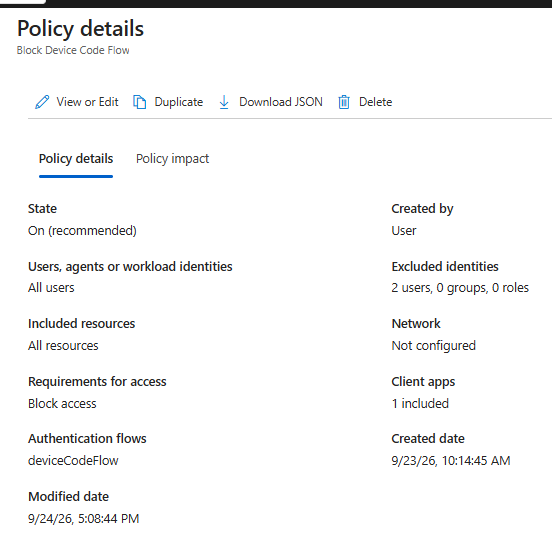
We pair the block with the rest of a healthy identity posture: phishing-resistant MFA where we can, token protection, and continuous monitoring of Microsoft 365 sign-ins for the unusual patterns that follow a token theft. The Conditional Access block removes the technique; the monitoring catches anything that tries another route.
If you co-manage with ThreeShield, this is already done
We have been adding the Block Device Code Flow and Block Authentication Transfer policies to the Microsoft 365 tenants we co-manage, as part of keeping your identity controls current with the threats we are seeing. So if you open your Conditional Access policy review in Lavawall and notice these two policies appear, or show a recent change date, that was ThreeShield adding the mitigation. It is not an attacker, and it is not a mistake.
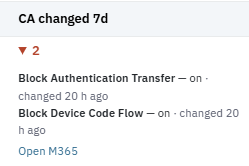
That change record matters both ways. It gives you the audit trail for a control we added on your behalf, and it means an unexpected or unexplained change to your Conditional Access policies stands out just as clearly, whoever made it.
Managing your own tenant? A safe path is: turn on a report-only policy first to see who actually uses device code flow, then move it to block for all users; exclude only break-glass and documented legacy accounts and audit that list; block authentication transfer unless you have a specific need; keep MFA and token protection on; and watch your Conditional Access policies for changes you did not make.